
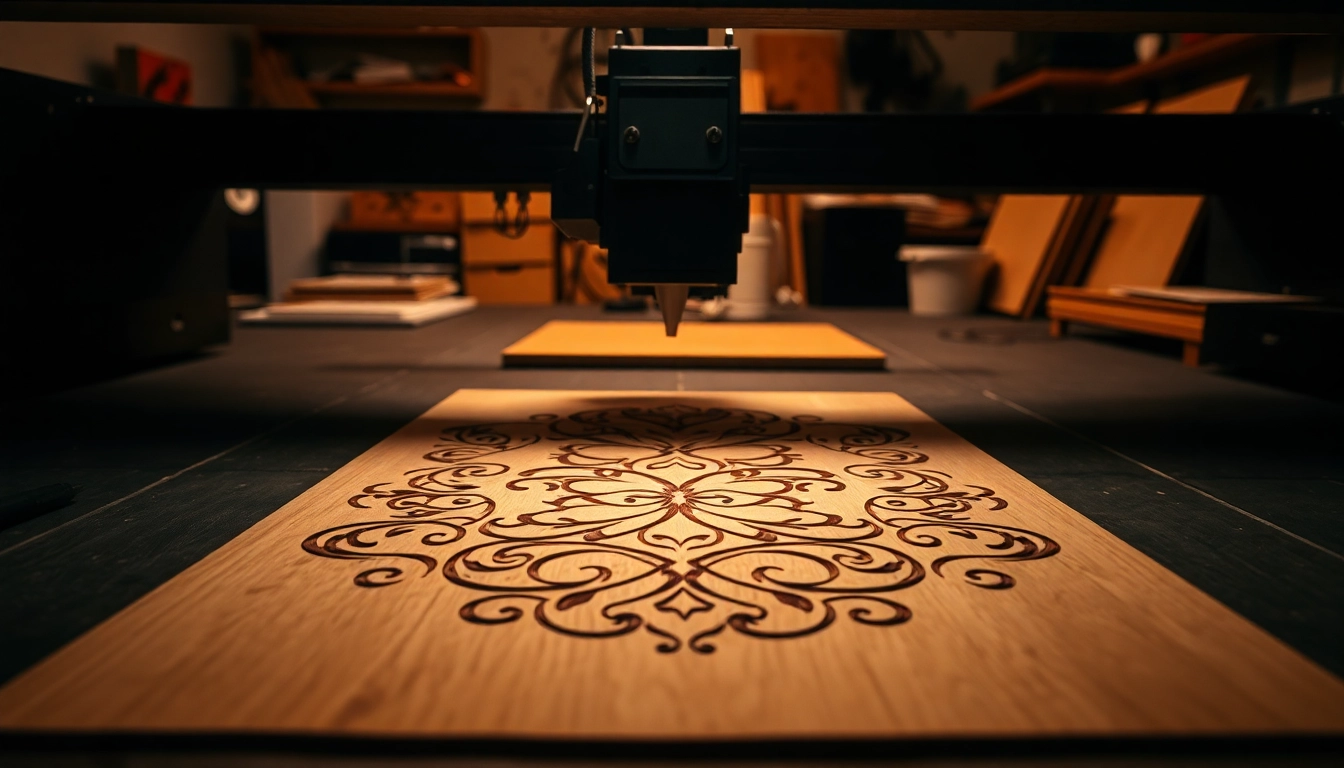
Understanding DXF Files for Laser Cutting
What is a DXF File?
A DXF, or Drawing Exchange Format, is a vector file format developed by Autodesk for enabling data interoperability between AutoCAD and other software. To simplify, it’s a digital blueprint that accurately represents 2D and 3D drawings. Each DXF file contains detailed information about geometry, dimensions, and object properties, making it essential for engineers, architects, and designers involved in manufacturing processes. When discussing laser cutting, this format is particularly crucial since it informs the cutting machine how to interpret and execute designs with precision.
The Importance of DXF for Laser Cutting
The significance of using DXF files for laser cutting cannot be overstated. This format facilitates the transfer of intricate designs to laser cutting machines with utmost accuracy. Since laser cutting relies on precise paths and measurements, a DXF file ensures that the intricate details of a design are maintained throughout the production process. When a dxf file for laser cutting is created or obtained correctly, it leads to higher-quality cuts, reduced material waste, and improved production efficiency.
How DXF Files Differ from Other Formats
Unlike bitmap images (e.g., JPEG, PNG) that represent images as a collection of pixels, DXF files maintain vector graphics, allowing for scalability without loss of quality. This attribute makes DXF files favorable for laser cutting, where precision is paramount. Additionally, while formats like SVG are commonly used for web graphics, they may not carry the same detailed functionality regarding layers and attributes as DXF files do, especially in engineering and crafting contexts. Thus, DXF files stand out for engineering designs due to their specific technical capabilities.
Creating Your Own DXF Files
Software Options for Creating DXF Files
A variety of software solutions are available for creating DXF files tailored for laser cutting. Some of the most popular options include:
- AutoCAD: The standard in computer-aided design (CAD), widely used across various industries.
- Inkscape: A free vector graphics editor that can export files in DXF format, ideal for those on a budget.
- Fusion 360: An Autodesk product that provides advanced capabilities for creating both 2D and 3D models.
- CorelDRAW: A well-known graphic design software that features DXF export functions, allowing for simple integration into laser cutting workflows.
- DraftSight: A professional-grade DWG/DXF editor that can handle detailed designs suitable for laser cutting.
Step-by-Step Guide to Crafting a DXF File
Crafting a DXF file may seem daunting, but with the right approach, it can be straightforward. Here’s a simplified step-by-step guide:
- Choose Your Software: Select an appropriate tool (e.g., AutoCAD, Inkscape).
- Create Your Design: Utilize the software’s tools to draw or import your design. Ensure that all elements are vector-based.
- Finalize Layers: Organize your design into layers if necessary, as this aids in managing different aspects of the cutting process.
- Export as DXF: Use the export function in your software to save your final design as a DXF file, ensuring that the output settings are compatible with your laser cutter.
- Test Your File: Before committing to a full cut, conduct a test run with cheaper materials to verify precision and design integrity.
Common Pitfalls When Making DXF Files
Creating DXF files isn’t without challenges. Some common pitfalls include:
- Incompatible Settings: Ensure that your export settings align with your laser cutter requirements to avoid functionality issues.
- Scale Issues: Verify that your designs are scaled correctly before exporting; incorrect dimensions can significantly impact the final product.
- Ignoring Layers: Failure to utilize layers appropriately can confuse the laser cutter, leading to inaccurate cuts.
Acquiring DXF Files for Laser Cutting
Where to Find High-Quality DXF Files
There are numerous resources available to find high-quality DXF files suited for laser cutting:
- Online Libraries: Websites dedicated to vector graphics often feature extensive DXF file libraries that can be downloaded for free or at a low cost.
- Community Forums: Many DIY and maker communities share free resources or have members willing to exchange DXF files.
- Design Marketplaces: Various platforms allow designers to sell their DXF files. These files are typically well-tested, ensuring compatibility and quality.
Evaluating DXF File Quality and Compatibility
When acquiring DXF files, it’s essential to evaluate their quality to ensure successful laser cutting:
- Check for Clean Geometry: Ensure there are no overlapping lines or non-manifold edges that could complicate cutting.
- Confirm Layer Management: Well-structured files should clearly define layers for different cutting speeds or processes.
- Compatibility with Your Laser Cutter: Always check if the DXF file version is supported by your machinery.
Free vs. Paid DXF File Options
Choosing between free and paid DXF files can depend on your project needs. Free files can be budget-friendly and accessibly abundant, but they may come with issues related to quality or compatibility. Conversely, paid options often ensure better quality and support, making them more suitable for professional or commercial projects. A balanced approach, where one uses free resources while investing in premium files when necessary, often yields the best results.
Best Practices for Using DXF Files
How to Prepare a DXF File for Laser Cutting
Preparing a DXF file for laser cutting involves several key steps:
- Remove unnecessary elements: Ensure that all elements are essential for the cutting process, eliminating excess details that do not contribute to the design.
- Reduce Complexity: Simplify your design if it’s overly intricate, as this can prevent cutting errors and reduce production time.
- Specify Line Types: Clearly define which lines represent cuts and which represent etching or engraving, as this will guide the laser cutter’s operations.
Optimizing DXF Files for Different Materials
Different materials require unique cutting parameters. Optimizing your DXF file based on the material you’re cutting will enhance quality and efficiency. For example:
- Wood: Utilize slower cutting speeds and higher power settings for dense wood applications.
- Plastic: Use quicker speeds and moderate power to prevent melting.
- Metal: Higher power settings are necessary, but material type affects speed and focus. Research specific parameters depending on metal thickness and type.
Testing Your Designs Before Cutting
Conducting tests is essential before proceeding with an actual cut. Use affordable materials to test various parameters, including speed, power, and frequency. Such prototype cuts allow you to make necessary adjustments and prevent material wastage, ensuring that the final output meets your expectations.
FAQs About DXF Files for Laser Cutting
What types of designs can I create with a DXF file for laser cutting?
You can create various 2D designs like logos, intricate patterns, geometric shapes, and even complex illustrations suited for laser cutting.
Are DXF files compatible with all laser cutting machines?
Most laser cutting machines accept DXF files, but always check compatibility with your specific model to ensure seamless operation.
Can I convert other file formats to DXF for laser cutting?
Yes, many design software tools allow conversion from formats like SVG or AI to DXF, facilitating easier workflow adaptations.
How do I troubleshoot issues with my DXF file?
Ensure the file is optimized, check for unsupported features, and confirm the correct layers are designated for laser operations in your software.
Where can I find free DXF files for my projects?
Many websites offer free DXF files; just ensure they are high quality and fit your machine’s specifications before downloading.